

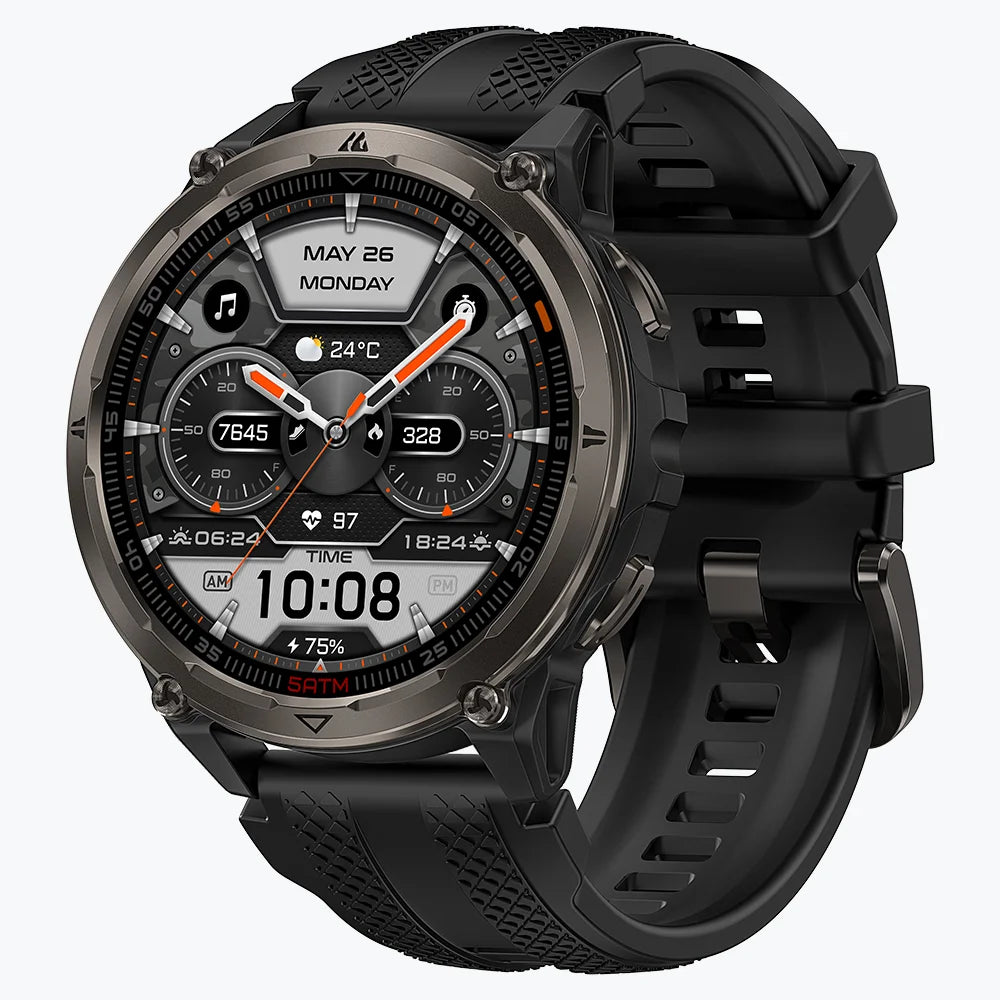

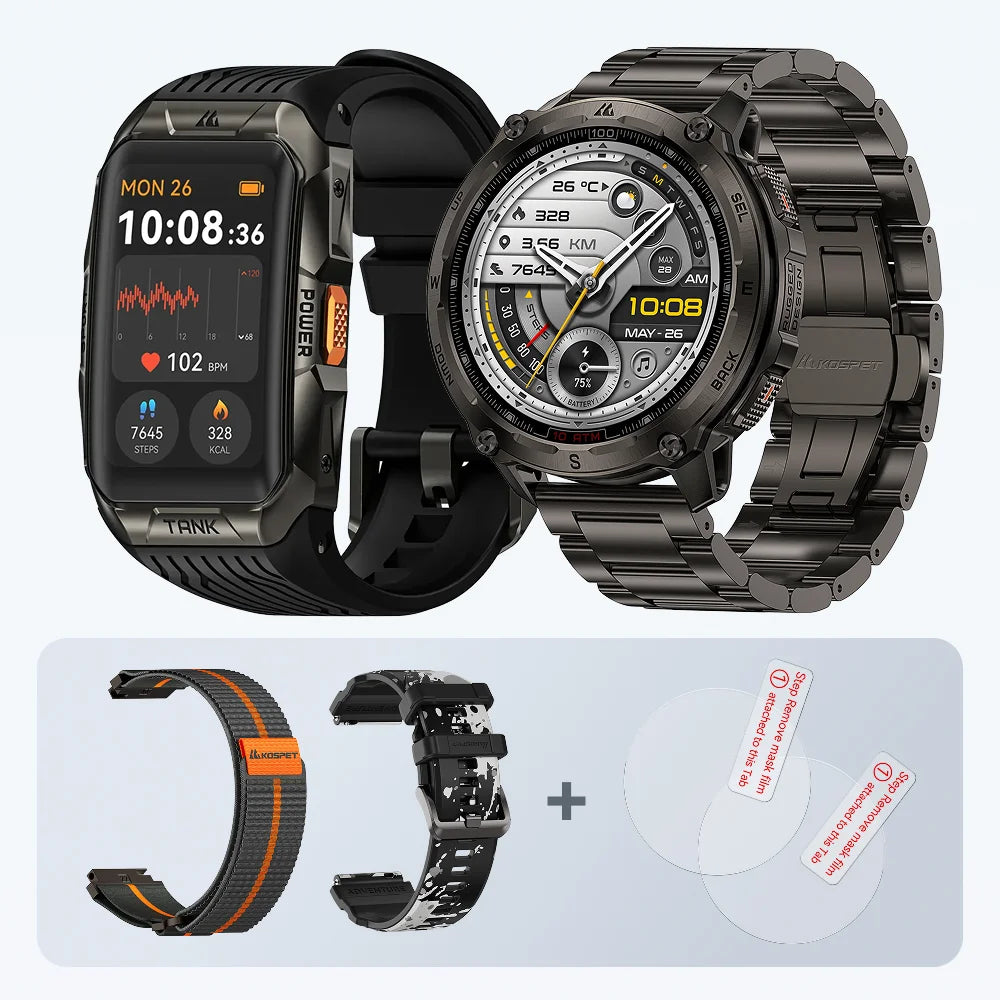



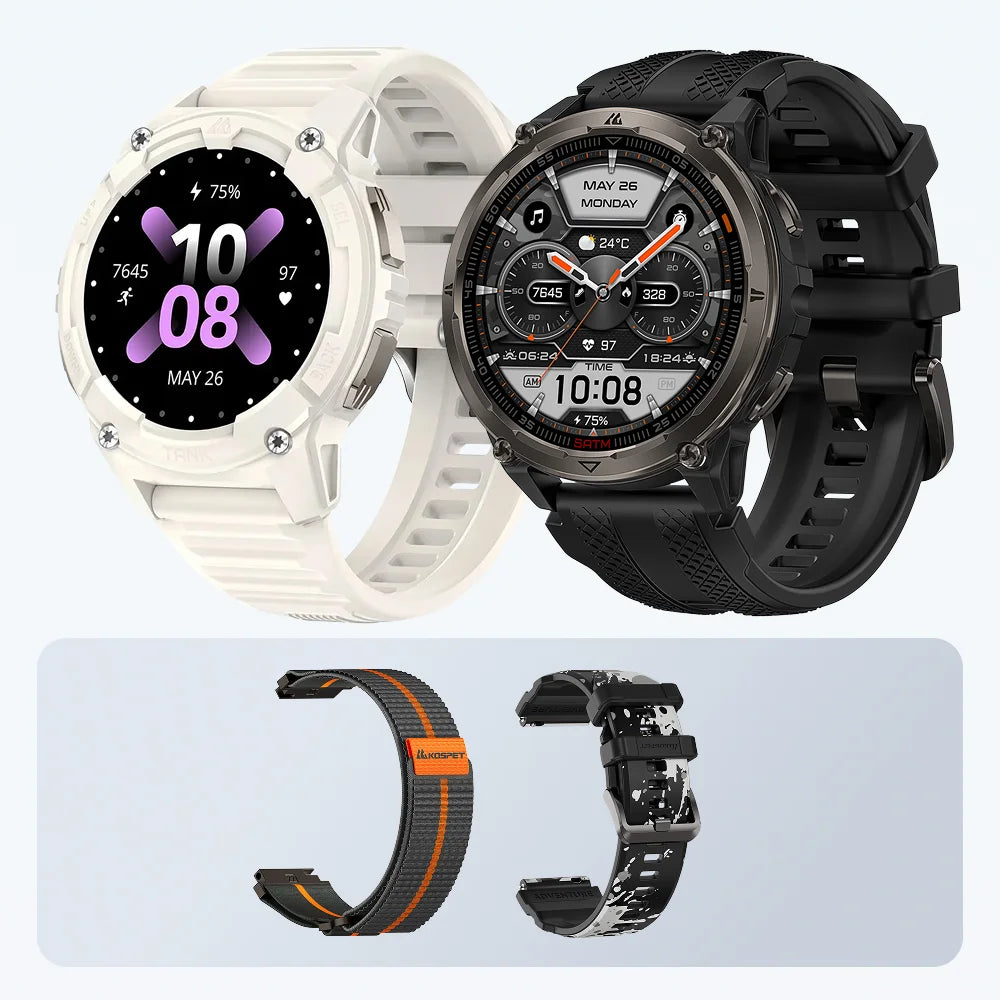
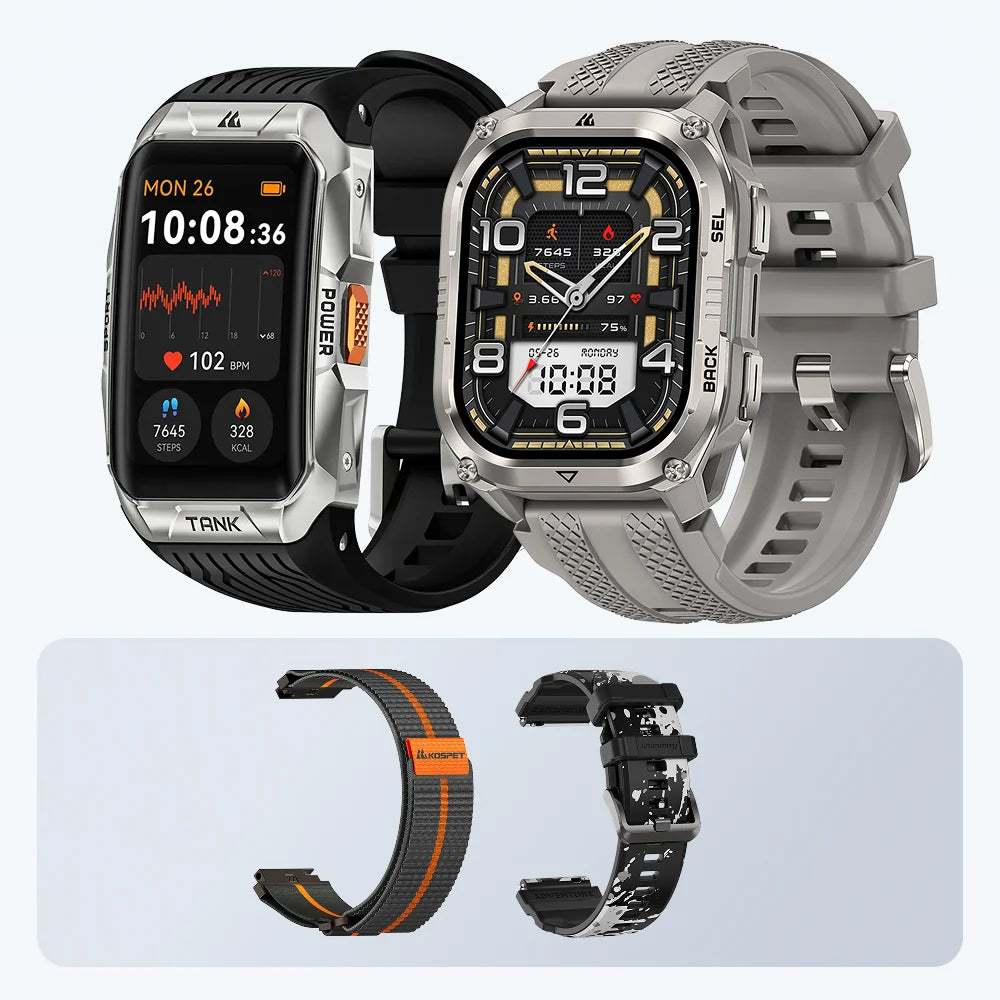




On a running route with several similar turns, an offline map on your outdoor smartwatch helps you compare the path ahead with the course you planned. This guide shows how to set up maps and routes on the KOSPET TANK T4 and TANK M4, then use them while recording a run.
$300.00 CAD

KOSPET TANK M4 Smartwatch

Why Offline Navigation Gives Runners Control
Three things appear on the watch for different reasons: the map shows nearby roads or trails, a saved route marks your planned course, and the position marker shows where the watch estimates you are. A map may be enough to check a familiar area. For an unfamiliar trail or race course, add a route so you have a line to follow.
Prepare Your Watch Before The Run
For the initial setup, have your phone with Apexmove, a Windows or Mac computer, and a data cable for the watch ready.
Install Apexmove And Pair Your Watch
Install the Apexmove app. With Bluetooth enabled, open My → My Device → Add Device and select your TANK T4 or TANK M4. Keep the watch connected to the app while preparing the route.
Download The Right Offline Map Area
- On your computer, open KOSPET’s Offline Map Resource Download Center. In Apexmove, tap the device icon at the top right of the home screen and scan the QR code on the computer to sign in.
- Find your running region and download its resources. Include the Landscape Map File; KOSPET says the offline map may not function properly without it.
- Extract the downloaded archive. Connect the watch to the computer and enable MTP mode when prompted.

- Open the watch as a drive and copy the extracted map files into its Map folder. Leave the compressed archive outside that folder.

- On the watch, press SEL → Settings → Map Manager. The region you transferred should appear in the list.

Check coverage against the entire run. A map that contains the start but ends before the final section will leave you without local map detail later.
Plan Or Import A Route You Trust
In Apexmove, open Explore → + → Create Route. Choose a running route type and Customize, then place the start and destination on the map. Review the path and tap Save → Send to Watch.

If you have a GPX or KML file, select Import Route (GPX/KML) instead of drawing the course. Inspect its starting point and direction before sending it, particularly when the file comes from a race organizer or another runner.
Press SEL → Navigation → briefcase icon → My Routes on the watch. Find the course you sent and select Use Route. Seeing it in this list confirms that the route transfer succeeded; it does not confirm that you downloaded the surrounding map, so check Map Manager too.

How Offline Navigation Works On KOSPET Watches
Satellite Positioning With Local Maps
The map is stored on the watch, while satellite signals provide its position. Once setup is complete, mobile service is not required to display the downloaded area or a saved course.
Losing mobile coverage does not mean losing GPS reception. Conversely, a map can remain visible while trees, buildings or steep terrain make the position marker drift.
OPDR Algorithm And Route Tracking
KOSPET says its OPDR algorithm helps record an activity track when GPS reception weakens. It is not a guarantee that the marker will follow your exact steps. At a confusing junction, compare the display with trail signs and the paths you can see.
Using Offline Navigation During The Run
Start Your Activity With GPS Ready
You can select a saved route from the watch’s workout page while recording an outdoor run. The course is also available through Navigation → My Routes.
Before setting off, wait for the watch to establish your position. Check that the marker is near your actual starting point and that the planned line heads in the right direction. If the line begins elsewhere, correct the course in Apexmove rather than trying to follow it from the wrong end.
Follow The Route Line On The Map
During navigation, KOSPET shows the planned route in orange and the recorded path in blue. Their relationship helps you notice a missed turn: the recorded path begins to move away from the course you selected.

A deviation alert calls for a check, not an immediate change of direction. You may have taken another trail, or the marker may be inaccurate because of poor reception. Pause, inspect the junction and use the map to see how nearby paths connect.
Use Location Marking When It Matters
Create a location point in Apexmove for a place you may need to find again, such as a water stop or trail entrance, and sync it to the watch. You can then select that point for navigation instead of following a full course.
Managing Battery Life During Navigation
KOSPET lists up to 21–22 hours of continuous GPS use for the TANK T4 and TANK M4. This is a published GPS figure, not a measured runtime for your particular combination of navigation and screen use. Charge the watch before a long run and allow extra power for delays.
Common Mistakes And How To Avoid Them
- You have a position marker but no map detail. Check Map Manager. If the region is absent, confirm that the extracted files are in the watch’s Map folder and include its Landscape Map File.
- The map appears without an orange course line. Look in My Routes. If the course is missing, return to Apexmove and send it to the watch.
- The computer cannot access the watch. Confirm that the cable supports data transfer, the connection is secure and MTP mode is enabled.
- The course starts at the wrong place. Check the route file or the points you selected in Apexmove, then transfer the corrected version.
- Map detail ends during the run. You have likely moved beyond the downloaded region. GPS tracking may continue, but you should not rely on local map coverage outside that area.
Test the setup on a familiar short run before using it on a route where the turns are difficult to judge.
Conclusion
A successful setup gives you two things to verify on the watch: the running region in Map Manager and your chosen course in My Routes. At the start, confirm your position before relying on the line at the first junction.
To explore models with these navigation features, visit KOSPET’s running watches and compare the TANK T4 with the TANK M4.
FAQs
Do I need a GPX file to follow a route?
No. You can draw a course in Apexmove. GPX and KML import are useful when you already have a file from a race or another route-planning source.
Will the watch automatically reroute me after a missed turn?
KOSPET’s cited T4 and M4 product information does not document automatic on-watch rerouting. Use the map to assess nearby paths rather than assuming a new course has been calculated.
Can I change the deviation reminder?
Yes. KOSPET’s guide lists 20 meters as the default distance and says you can adjust it under Navigation Settings.